Android - Support Library
When you develop an app on a latest version of android like 5.x and you also want it to run on those devices which are running older versions of android like 3.2 e.t.c. you can't do that until you add backward compatibility to your code.
To provide this backward compatibility android provides you the Android Support Library package. The Android Support Library package is a set of code libraries that provide backward-compatible versions of Android framework APIs as well as features that are only available through the library APIs. Each Support Library is backward-compatible to a specific Android API level.
Following is a brief description of android support libraries and API level they support.| Sr.No | Version & Features |
|---|---|
| 1 | v4 Support Library This library is designed to be used with Android 1.6 (API level 4) and higher. |
| 2 | v7 Support Library There are several libraries designed to be used with Android 2.1 (API level 7) and higher. |
| 3 | v8 Support Library This library is designed to be used with Android (API level 8) and higher. |
| 4 | v13 Support Library This library is designed to be used for Android 3.2 (API level 13) and higher. |
Ref : Support Library - Features
Ref : Google Material
RecyclerView
The recent release of Android support library (v7:21.0.+) has introduced two new user interface widget: RecyclerView and CardView that helps in building rich Android apps.The 1. RecyclerView is more advanced and flexible and efficient version of ListView. RecyclerView ViewGroup is an container for larger data set of views that can be recycled and scrolled very efficiently.
In the other hand the 2. CardView widget, is an extension of existing FrameLayout class. A CardView is a ViewGroup.This helps to wrap other UI elements as Google style cards. CardView widgets can have shadows and rounded corners.
Add CardView Support Library
Android SDK doesn't includes the CardView class, and hence for using CardView in your project you first need to add the card view support library to your project. Android Studio users can add the following graddle dependency in your build.graddle file to add CardView to project.
dependencies {
       compile 'com.android.support:cardview-v7:21.0.+'
       compile 'com.android.support:recyclerview-v7:21.0.+'
}
Declare CardView LayoutIn this example, we will add an ImageView and two TextViews as shown in the following screenshot.
<android.support.v7.widget.CardView xmlns:android="http://schemas.android.com/apk/res/android"
    android:id="@+id/card_view"
    android:layout_width="match_parent"
    android:layout_height="380dp"
    android:layout_margin="8dp">

    <RelativeLayout
        android:layout_width="match_parent"
        android:layout_height="match_parent">

        <ImageView
            android:id="@+id/thumbnail"
            android:layout_width="match_parent"
            android:layout_height="250dp"
            android:layout_alignParentTop="true"
            android:scaleType="centerCrop"
            android:src="@drawable/wallpaper" />

        <TextView
            android:id="@+id/title"
            android:layout_width="wrap_content"
            android:layout_height="wrap_content"
            android:layout_below="@+id/thumbnail"
            android:maxLines="3"
            android:padding="8dp"
            android:text="@string/title"
            android:textColor="#222"
            android:textStyle="bold"
            android:textSize="22dp" />

        <TextView
            android:layout_width="wrap_content"
            android:layout_height="wrap_content"
            android:layout_below="@+id/title"
            android:maxLines="3"
            android:padding="8dp"
            android:text="@string/description"
            android:textColor="#666"
            android:textSize="14dp" />

    </RelativeLayout>
</android.support.v7.widget.CardView>
The output of the above code is as follows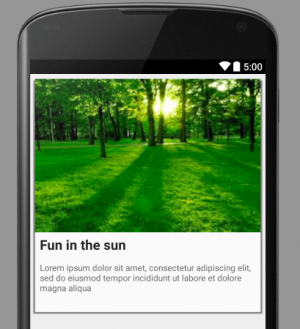
Now let us use the following CardView properties to customize the appearance of the CardView :
- cardView:cardCornerRadius - To set the corner radius in your layouts.
- cardView:cardBackgroundColor - To set the background color of a card.
CardView - RecyclerView
Creating a RecyclerView
Step 1: Defining It in a Layout
Using a RecyclerView instance is slightly more complicated. However, defining it in a layout XML file is quite simple. You can define it in a layout as follows:
<android.support.v7.widget.RecyclerView
    android:layout_width="match_parent"
    android:layout_height="match_parent"
    android:id="@+id/rv"
    />
To obtain a handle to it in your Activity, use the following snippet:RecyclerView rv = (RecyclerView)findViewById(R.id.rv);If you are sure that the size of the RecyclerView won't be changing, you can add the following to improve performance:
rv.setHasFixedSize(true);Step 2: Using a LayoutManager
Unlike a ListView, a RecyclerView needs a LayoutManager to manage the positioning of its items. You could define your own LayoutManager by extending the RecyclerView.LayoutManager class. However, in most cases, you could simply use one of the predefined LayoutManager subclasses:
- LinearLayoutManager
- GridLayoutManager
- StaggeredGridLayoutManager
LinearLayoutManager llm = new LinearLayoutManager(context);
rv.setLayoutManager(llm);
Step 3: Defining the Data
Just like a ListView, a RecyclerView needs an adapter to access its data. But before we create an adapter, let us create data that we can work with. Create a simple class to represent a person and then write a method to initialize a List of Person objects:
class Person {
    String name;
    String age;
    int photoId;

    Person(String name, String age, int photoId) {
        this.name = name;
        this.age = age;
        this.photoId = photoId;
    }
}

private List persons;

// This method creates an ArrayList that has three Person objects
// Checkout the project associated with this tutorial on Github if
// you want to use the same images.
private void initializeData(){
    persons = new ArrayList<>();
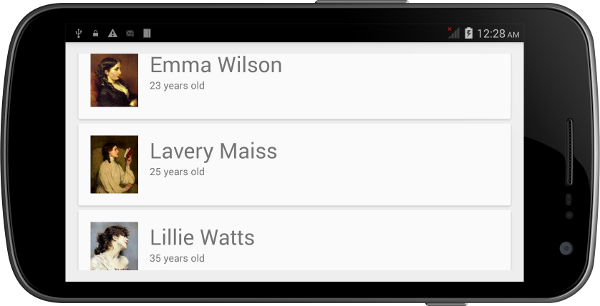
    persons.add(new Person("Emma Wilson", "23 years old", R.drawable.emma));
    persons.add(new Person("Lavery Maiss", "25 years old", R.drawable.lavery));
    persons.add(new Person("Lillie Watts", "35 years old", R.drawable.lillie));
}
Step 4: Creating an AdapterTo create an adapter that a RecyclerView can use, you must extend RecyclerView.Adapter. This adapter follows the view holder design pattern, which means that it you to define a custom class that extends RecyclerView.ViewHolder. This pattern minimizes the number of calls to the costly findViewById method.
Earlier in this tutorial, we already defined the XML layout for a CardView that represents a person. We are going to reuse that layout now. Inside the constructor of our custom ViewHolder, initialize the views that belong to the items of our RecyclerView.public class RVAdapter extends RecyclerView.AdapterNext, add a constructor to the custom adapter so that it has a handle to the data that the RecyclerView displays. As our data is in the form of a List of Person objects, use the following code:{ public static class PersonViewHolder extends RecyclerView.ViewHolder { CardView cv; TextView personName; TextView personAge; ImageView personPhoto; PersonViewHolder(View itemView) { super(itemView); cv = (CardView)itemView.findViewById(R.id.cv); personName = (TextView)itemView.findViewById(R.id.person_name); personAge = (TextView)itemView.findViewById(R.id.person_age); personPhoto = (ImageView)itemView.findViewById(R.id.person_photo); } } }
ListRecyclerView.Adapter has three abstract methods that we must override. Let us start with the getItemCount method. This should return the number of items present in the data. As our data is in the form of a List, we only need to call the size method on the List object:persons; RVAdapter(List persons){ this.persons = persons; }
@Override
public int getItemCount() {
    return persons.size();
}
Next, override the onCreateViewHolder method. As its name suggests, this method is called when the custom ViewHolder needs to be initialized. We specify the layout that each item of the RecyclerView should use. This is done by inflating the layout using LayoutInflater, passing the output to the constructor of the custom ViewHolder.
@Override
public PersonViewHolder onCreateViewHolder(ViewGroup viewGroup, int i) {
    View v = LayoutInflater.from(viewGroup.getContext()).inflate(R.layout.item, viewGroup, false);
    PersonViewHolder pvh = new PersonViewHolder(v);
    return pvh;
}
Override the onBindViewHolder to specify the contents of each item of the RecyclerView. This method is very similar to the getView method of a ListView's adapter. In our example, here's where you have to set the values of the name, age, and photo fields of the CardView.
@Override
public void onBindViewHolder(PersonViewHolder personViewHolder, int i) {
    personViewHolder.personName.setText(persons.get(i).name);
    personViewHolder.personAge.setText(persons.get(i).age);
    personViewHolder.personPhoto.setImageResource(persons.get(i).photoId);
}
Finally, you need to override the onAttachedToRecyclerView method. For now, we can simply use the superclass's implementation of this method as shown below.
@Override
public void onAttachedToRecyclerView(RecyclerView recyclerView) {
    super.onAttachedToRecyclerView(recyclerView);
}
Step 5: Using the AdapterNow that the adapter is ready, add the following code to your Activity to initialize and use the adapter by calling the adapter's constructor and the RecyclerView's setAdapter method:
RVAdapter adapter = new RVAdapter(persons);
rv.setAdapter(adapter);
Step 6: Compile and Run When you run the RecyclerView example on an Android device, you should see something similar to the following result.
v7 Support Libraries
- v7 appcompat library
- v7 cardview library
- v7 gridlayout library
- v7 mediarouter library
- v7 palette library
- v7 recyclerview library
- v7 Preference Support Library