Introduction
Android Componets
UserInterface
Advanced UI
Data Storage
Advanced Concepts
Others
New Studio
- Android Components
- 2.1 Activity
- 2.2 Android Services
- 2.3 Broadcast Receiver
- 2.4 Content Provider
More about Android Intents
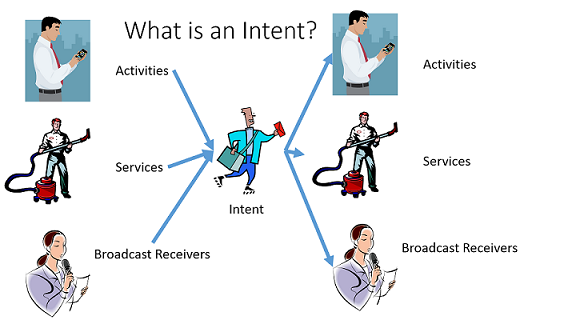
- An intent is an abstract description of an operation to be performed.
- It can be used with
startActivity()to launch an Activity, sendBroadcast()to send it to any interested BroadcastReceiver components,- and
startService(Intent)orbindService(Intent, ServiceConnection, int)to communicate with a background Service.
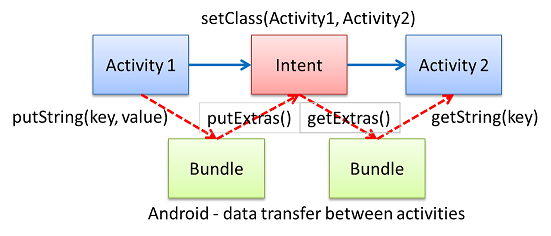
DataTransfer betweenActivities
PENDINGINTENT :
A PendingIntent specifies an action to take in the future.step 1 : res/layout/activity_main.xml
<LinearLayout xmlns:android="http://schemas.android.com/apk/res/android"
    xmlns:tools="http://schemas.android.com/tools"
    android:layout_width="match_parent"
    android:layout_height="match_parent" >

    <TextView
        android:id="@+id/textView1"
        android:layout_width="wrap_content"
        android:layout_height="wrap_content"
        android:text="Helloworld" />

</LinearLayout>
step 2 : src//MainActivity.java
package com.example.dailyalarmex;

import java.util.Calendar;
import android.app.Activity;
import android.app.AlarmManager;
import android.app.PendingIntent;
import android.content.Intent;
import android.os.Bundle;

public class MainActivity extends Activity {

	@Override
	protected void onCreate(Bundle savedInstanceState) {
		super.onCreate(savedInstanceState);
		setContentView(R.layout.activity_main);

		calender();

	}

	void calender(){

		Calendar calendar = Calendar.getInstance();

		calendar.set(Calendar.HOUR_OF_DAY, 12);
		calendar.set(Calendar.MINUTE, 15);
		calendar.set(Calendar.SECOND, 0);

		Intent intent1 = new Intent(MainActivity.this, AlaramReceiver.class);

		PendingIntent pendingIntent = PendingIntent.getBroadcast(MainActivity.this, 0,intent1, PendingIntent.FLAG_UPDATE_CURRENT);
		AlarmManager am = (AlarmManager) MainActivity.this.getSystemService(MainActivity.this.ALARM_SERVICE);
		am.setRepeating(AlarmManager.RTC_WAKEUP, calendar.getTimeInMillis(), AlarmManager.INTERVAL_DAY, pendingIntent);

	}

}
step 3 : src//AlaramReceiver.java
package com.example.dailyalarmex;

import android.app.NotificationManager;
import android.app.PendingIntent;
import android.content.BroadcastReceiver;
import android.content.Context;
import android.content.Intent;
import android.media.RingtoneManager;
import android.net.Uri;
import android.support.v4.app.NotificationCompat;

public class AlaramReceiver extends BroadcastReceiver{
	int MID=0;

	@Override
	public void onReceive(Context context, Intent intent) {

		long when = System.currentTimeMillis();
		NotificationManager notificationManager = (NotificationManager) context.getSystemService(Context.NOTIFICATION_SERVICE);

		Intent notificationIntent = new Intent(context, MainActivity.class);
		notificationIntent.setFlags(Intent.FLAG_ACTIVITY_CLEAR_TOP);

		PendingIntent pendingIntent = PendingIntent.getActivity(context, 0,notificationIntent, PendingIntent.FLAG_UPDATE_CURRENT);

		Uri alarmSound = RingtoneManager.getDefaultUri(RingtoneManager.TYPE_NOTIFICATION);

		NotificationCompat.Builder mNotifyBuilder = new NotificationCompat.Builder(context)
		.setSmallIcon(R.drawable.ic_launcher)
		.setContentTitle("Alaram Fired")
		.setContentText("Events To be Performed").setSound(alarmSound)
		.setAutoCancel(true).setWhen(when)
		.setContentIntent(pendingIntent);

		notificationManager.notify(MID, mNotifyBuilder.build());

		MID++;
	}

}
step 4 : AndroidManifest.xml
<?xml version="1.0" encoding="utf-8"?>
<manifest xmlns:android="http://schemas.android.com/apk/res/android"
    package="com.example.dailyalarmex"
    android:versionCode="1"
    android:versionName="1.0" >

    <uses-sdk
        android:minSdkVersion="10"
        android:targetSdkVersion="10" />
    <!-- permission required to use Alarm Manager -->
    <uses-permission android:name="com.android.alarm.permission.SET_ALARM" />

    <application
        android:allowBackup="true"
        android:icon="@drawable/ic_launcher"
        android:label="@string/app_name"
        android:theme="@style/AppTheme" >
        <activity
            android:name=".MainActivity"
            android:label="@string/app_name" >
            <intent-filter>
                <action android:name="android.intent.action.MAIN" />
                <category android:name="android.intent.category.LAUNCHER" />
            </intent-filter>
        </activity>

        <receiver android:name="com.example.dailyalarmex.AlaramReceiver" />
    </application>

</manifest>
Android StartActivityForResult Example
- By the help of android startActivityForResult() method, we can get result from another activity.
- By the help of android startActivityForResult() method, we can send information from one activity to another and vice-versa.
- The android startActivityForResult method, requires a result from the second activity (activity to be invoked).
- In such case, we need to override the onActivityResult method that is invoked automatically when second activity returns result.
Method Signature
There are two variants ofstartActivityForResult() method.
public void startActivityForResult (Intent intent, int requestCode)
public void startActivityForResult (Intent intent, int requestCode, Bundle options)
Android StartActivityForResult Example
File:activity_main.xml
<RelativeLayout xmlns:androclass="http://schemas.android.com/apk/res/android"
    xmlns:tools="http://schemas.android.com/tools"
    android:layout_width="match_parent"
    android:layout_height="match_parent"
    android:paddingBottom="@dimen/activity_vertical_margin"
    android:paddingLeft="@dimen/activity_horizontal_margin"
    android:paddingRight="@dimen/activity_horizontal_margin"
    android:paddingTop="@dimen/activity_vertical_margin"
    tools:context=".MainActivity" >
    <TextView
        android:id="@+id/textView1"
        android:layout_width="wrap_content"
        android:layout_height="wrap_content"
        android:layout_alignLeft="@+id/button1"
        android:layout_alignParentTop="true"
        android:layout_marginTop="48dp"
        android:text="Default Message" />
    <Button
        android:id="@+id/button1"
        android:layout_width="wrap_content"
        android:layout_height="wrap_content"
        android:layout_below="@+id/textView1"
        android:layout_centerHorizontal="true"
        android:layout_marginTop="42dp"
        android:text="GetMessage" />
</RelativeLayout>
File: second_main.xml
<RelativeLayout xmlns:androclass="http://schemas.android.com/apk/res/android"
    xmlns:tools="http://schemas.android.com/tools"
    android:layout_width="match_parent"
    android:layout_height="match_parent"
    android:paddingBottom="@dimen/activity_vertical_margin"
    android:paddingLeft="@dimen/activity_horizontal_margin"
    android:paddingRight="@dimen/activity_horizontal_margin"
    android:paddingTop="@dimen/activity_vertical_margin"
    tools:context=".SecondActivity" >
    <EditText
        android:id="@+id/editText1"
        android:layout_width="wrap_content"
        android:layout_height="wrap_content"
        android:layout_alignParentTop="true"
        android:layout_marginTop="61dp"
        android:layout_toRightOf="@+id/textView1"
        android:ems="10" />
    <TextView
        android:id="@+id/textView1"
        android:layout_width="wrap_content"
        android:layout_height="wrap_content"
        android:layout_alignBaseline="@+id/editText1"
        android:layout_alignBottom="@+id/editText1"
        android:layout_alignParentLeft="true"
        android:text="Enter Message:" />
    <Button
        android:id="@+id/button1"
        android:layout_width="wrap_content"
        android:layout_height="wrap_content"
        android:layout_below="@+id/editText1"
        android:layout_centerHorizontal="true"
        android:layout_marginTop="34dp"
        android:text="Submit" />
</RelativeLayout>
File: MainActivity.java
import android.os.Bundle;
import android.app.Activity;
import android.content.Intent;
import android.view.Menu;
import android.view.View;
import android.view.View.OnClickListener;
import android.widget.Button;
import android.widget.TextView;
public class MainActivity extends Activity {
    TextView textView1;
    Button button1;
    @Override
    protected void onCreate(Bundle savedInstanceState) {
        super.onCreate(savedInstanceState);
        setContentView(R.layout.activity_main);
        textView1=(TextView)findViewById(R.id.textView1);
        button1=(Button)findViewById(R.id.button1);
        button1.setOnClickListener(new OnClickListener() {
            @Override
            public void onClick(View arg0) {
                Intent intent=new Intent(MainActivity.this,SecondActivity.class);
                startActivityForResult(intent, 2);// Activity is started with requestCode 2
            }
        });
    }
 // Call Back method  to get the Message form other Activity
    @Override
       protected void onActivityResult(int requestCode, int resultCode, Intent data)
       {
                 super.onActivityResult(requestCode, resultCode, data);
                  // check if the request code is same as what is passed  here it is 2
                   if(requestCode==2)
                         {
                            String message=data.getStringExtra("MESSAGE");
                            textView1.setText(message);
                         }
     }
    @Override
    public boolean onCreateOptionsMenu(Menu menu) {
        // Inflate the menu; this adds items to the action bar if it is present.
        getMenuInflater().inflate(R.menu.main, menu);
        return true;
    }
}
File: SecondActivity.java
import android.os.Bundle;
import android.app.Activity;
import android.content.Intent;
import android.view.Menu;
import android.view.View;
import android.view.View.OnClickListener;
import android.widget.Button;
import android.widget.EditText;
import android.widget.TextView;
public class SecondActivity extends Activity {
    EditText editText1;
    Button button1;
    @Override
    protected void onCreate(Bundle savedInstanceState) {
        super.onCreate(savedInstanceState);
        setContentView(R.layout.activity_second);
        editText1=(EditText)findViewById(R.id.editText1);
            button1=(Button)findViewById(R.id.button1);
            button1.setOnClickListener(new OnClickListener() {
                @Override
                public void onClick(View arg0) {
                    String message=editText1.getText().toString();
                    Intent intent=new Intent();
                    intent.putExtra("MESSAGE",message);
                    setResult(2,intent);
                    finish();//finishing activity
                }
            });
    }
    @Override
    public boolean onCreateOptionsMenu(Menu menu) {
        // Inflate the menu; this adds items to the action bar if it is present.
        getMenuInflater().inflate(R.menu.second, menu);
        return true;
    }
}
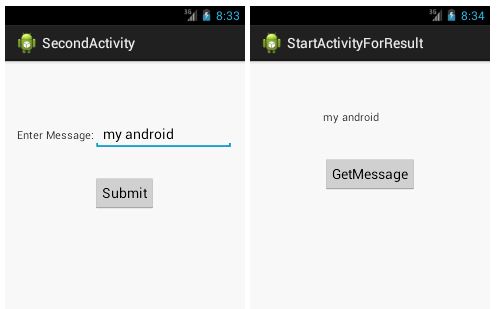
OUTPUT :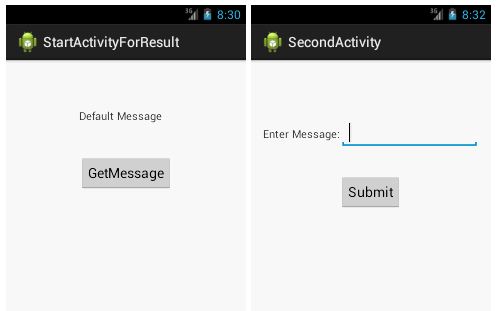
Android - Activities
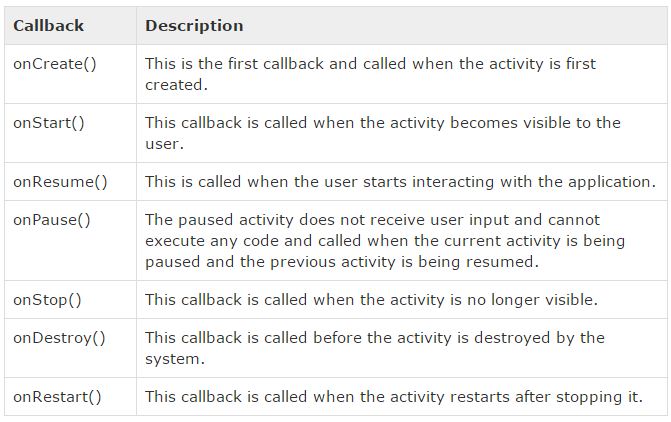
- An activity represents a single screen with a user interface just like window.
- Android system initiates its program with in an Activity starting with a call on onCreate() callback method.
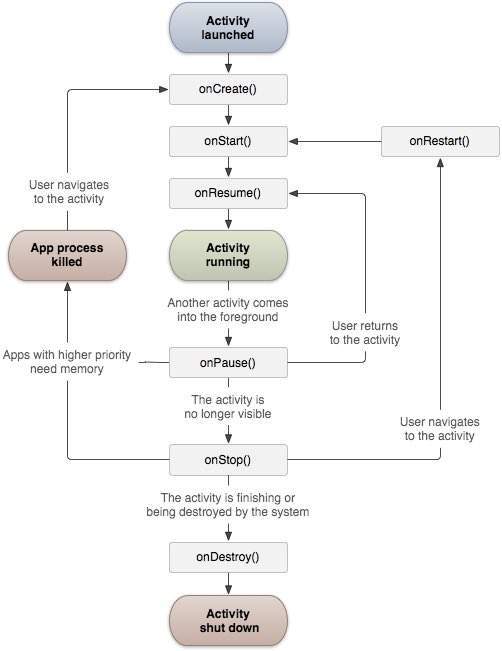
- There is a sequence of callback methods that start up an activity.
- Android Activity Lifecycle is controlled by 7 methods of android.app.Activity class.
- The Activity class defines the following call backs i.e. events. You don't need to implement all the callbacks methods.
Android Activity Lifecycle methods
Android Explicit Intent Example
- Android Explicit intent specifies the component to be invoked from activity.
- In other words, we can call another activity in android by explicit intent.
- We can also pass the information from one activity to another using explicit intent.
- Here, we are going to see an example to call one activity from another and vice-versa.
Android calling one activity from another activity example
File:activity_main.xml
<RelativeLayout xmlns:androclass="http://schemas.android.com/apk/res/android"
    xmlns:tools="http://schemas.android.com/tools"
    android:layout_width="match_parent"
    android:layout_height="match_parent"
    tools:context=".MainActivity" >

    <Button
        android:id="@+id/Button01"
        android:layout_width="wrap_content"
        android:layout_height="wrap_content"
        android:layout_alignParentLeft="true"
        android:layout_below="@+id/TextView01"
        android:layout_marginLeft="65dp"
        android:layout_marginTop="38dp"
        android:onClick="onClick"
        android:text="Call second activity" />

    <TextView
        android:id="@+id/TextView01"
        android:layout_width="wrap_content"
        android:layout_height="wrap_content"
        android:layout_alignLeft="@+id/Button01"
        android:layout_alignParentTop="true"
        android:layout_marginLeft="18dp"
        android:layout_marginTop="27dp"
        android:minHeight="60dip"
        android:text="First Activity"
        android:textSize="20sp" />

</RelativeLayout>
File: activitytwo_main.xml
<RelativeLayout xmlns:androclass="http://schemas.android.com/apk/res/android"
    xmlns:tools="http://schemas.android.com/tools"
    android:layout_width="match_parent"
    android:layout_height="match_parent"
    tools:context=".MainActivity" >

    <Button
        android:id="@+id/Button01"
        android:layout_width="wrap_content"
        android:layout_height="wrap_content"
        android:layout_alignParentLeft="true"
        android:layout_below="@+id/TextView01"
        android:layout_marginLeft="65dp"
        android:layout_marginTop="38dp"
        android:onClick="onClick"
        android:text="Call First activity" />

    <TextView
        android:id="@+id/TextView01"
        android:layout_width="wrap_content"
        android:layout_height="wrap_content"
        android:layout_alignLeft="@+id/Button01"
        android:layout_alignParentTop="true"
        android:layout_marginLeft="18dp"
        android:layout_marginTop="27dp"
        android:minHeight="60dip"
        android:text="Second Activity"
        android:textSize="20sp" />

</RelativeLayout>
File: MainActivityOne.java
import android.os.Bundle;
import android.app.Activity;
import android.content.Intent;
import android.view.Menu;
import android.view.View;
import android.view.View.OnClickListener;
import android.widget.Button;
import android.widget.Toast;
public class ActivityOne extends Activity {
    /** Called when the activity is first created. */
      @Override
      public void onCreate(Bundle savedInstanceState) {
        super.onCreate(savedInstanceState);
        setContentView(R.layout.activity_main);
        Button button1=(Button)findViewById(R.id.Button01);

        button1.setOnClickListener(new OnClickListener(){
         public void onClick(View view) {
          Intent i = new Intent(getApplicationContext(), ActivityTwo.class);
          i.putExtra("Value1", "Android By Bytecode");
          i.putExtra("Value2", "Simple Tutorial");
          // Set the request code to any code you like, you can identify the
          // callback via this code
          startActivity(i);
         }
         });
      }
    }
File: MainActivityTwo.java
import android.app.Activity;
import android.content.Intent;
import android.os.Bundle;
import android.view.View;
import android.view.View.OnClickListener;
import android.widget.Button;
import android.widget.EditText;
import android.widget.TextView;
import android.widget.Toast;
public class ActivityTwo extends Activity {
/** Called when the activity is first created. */
  @Override
  public void onCreate(Bundle bundle) {
    super.onCreate(bundle);
    TextView tv=new TextView(this);
    tv.setText("second activity");
    setContentView(R.layout.activity_two);
    Bundle extras = getIntent().getExtras();
    String value1 = extras.getString("Value1");
    String value2 = extras.getString("Value2");
    Toast.makeText(getApplicationContext(),"Values are:\n First value: "+value1+
         "\n Second Value: "+value2,Toast.LENGTH_LONG).show();
    Button button1=(Button)findViewById(R.id.Button01);
    button1.setOnClickListener(new OnClickListener(){
        public void onClick(View view) {
            Intent i = new Intent(getApplicationContext(), ActivityOne.class);
            startActivity(i);
          }
    });
  }
}
Android Implicit Intent Example
File:activity_main.xml
<RelativeLayout xmlns:androclass="http://schemas.android.com/apk/res/android"
    xmlns:tools="http://schemas.android.com/tools"
    android:layout_width="match_parent"
    android:layout_height="match_parent"
    tools:context=".MainActivity" >
    <EditText
        android:id="@+id/editText1"
        android:layout_width="wrap_content"
        android:layout_height="wrap_content"
        android:layout_alignParentTop="true"
        android:layout_centerHorizontal="true"
        android:layout_marginTop="44dp"
        android:ems="10" />
    <Button
        android:id="@+id/button1"
        android:layout_width="wrap_content"
        android:layout_height="wrap_content"
        android:layout_below="@+id/editText1"
        android:layout_centerHorizontal="true"
        android:layout_marginTop="54dp"
        android:text="Visit" />
</RelativeLayout>
File: MainActivity.java
import android.net.Uri;
import android.os.Bundle;
import android.app.Activity;
import android.content.Intent;
import android.view.View;
import android.view.View.OnClickListener;
import android.widget.Button;
import android.widget.EditText;
public class MainActivity extends Activity {
    @Override
    protected void onCreate(Bundle savedInstanceState) {
        super.onCreate(savedInstanceState);
        setContentView(R.layout.activity_main);
        final EditText editText1=(EditText)findViewById(R.id.editText1);
        Button button1=(Button)findViewById(R.id.button1);
        button1.setOnClickListener(new OnClickListener() {
            @Override
            public void onClick(View arg0) {
                String url=editText1.getText().toString();
                Intent intent=new Intent(Intent.ACTION_VIEW,Uri.parse(url));
                startActivity(intent);
            }
        });
    }
}
OUTPUT :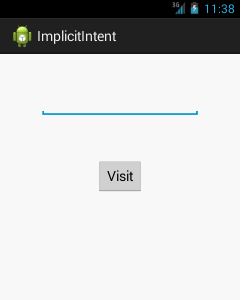
Activity Example
import android.os.Bundle;
import android.app.Activity;
import android.util.Log;
import android.view.Menu;
public class MainActivity extends Activity {
    @Override
    protected void onCreate(Bundle savedInstanceState) {
        super.onCreate(savedInstanceState);
        setContentView(R.layout.activity_main);
        Log.d("lifecycle","onCreate invoked");
    }
    @Override
    protected void onStart() {
        super.onStart();
         Log.d("lifecycle","onStart invoked");
    }
    @Override
    protected void onResume() {
        super.onResume();
         Log.d("lifecycle","onResume invoked");
    }
    @Override
    protected void onPause() {
        super.onPause();
         Log.d("lifecycle","onPause invoked");
    }
    @Override
    protected void onStop() {
        super.onStop();
         Log.d("lifecycle","onStop invoked");
    }
       @Override
    protected void onRestart() {
        super.onRestart();
         Log.d("lifecycle","onRestart invoked");
    }
    @Override
    protected void onDestroy() {
        super.onDestroy();
         Log.d("lifecycle","onDestroy invoked");
    }
}
- An activity class loads all the UI component using the XML file available in res/layout folder of the project.
- Following statement loads UI components from res/layout/activity_main.xml file:
setContentView(R.layout.activity_main);
You will not see any output on the emulator or device. You need to open logcat.

Now see on the logcat: onCreate, onStart and onResume methods are invoked.

Now click on the HOME Button. You will see onPause method is invoked.
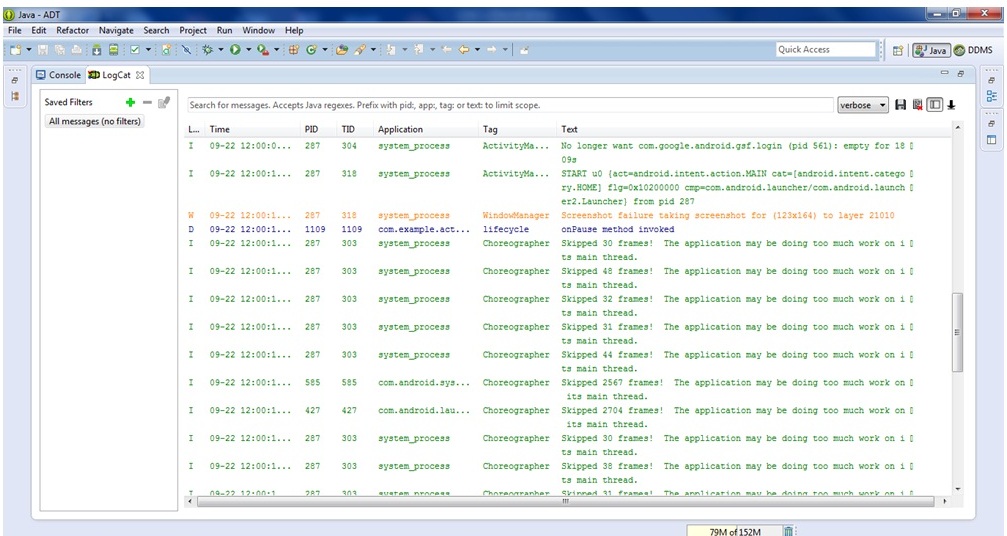
After a while, you will see onStop method is invoked.

The onCreate() and onDestroy() methods are called only once throughout the activity lifecycle.
- When you run the following code, First is ON CREATE , second is ON START and third is ON RESUME.
- When you press the home button from the emulator, ON PAUSE and ON STOP methods call.
- And when you open the application again ON RESTART, ON START and ON RESUME methods call.
- And at last, when you press the back button from emulator, ON PAUSE , ON STOP and ON DESTROY method calls.
1. Android Intent
- Android Intent is the message that is passed between components such as
- activities,
- content providers,
- broadcast receivers,
- services etc.
- It is generally used with startActivity() method to invoke activity, broadcast receivers etc.
- The dictionary meaning of intent is intention or purpose. So, it can be described as the intention to do action.
- The LabeledIntent is the subclass of android.content.Intent class.
2. Android intents are mainly used to:
- Start the service
- Launch an activity
- Display a web page
- Display a list of contacts
- Broadcast a message
- Dial a phone call etc.
3. Types of Android Intents
There are two types of intents in android:- Implicit Intent
- Explicit Intent
3.1 Implicit Intent
Implicit Intent doesn't specifiy the component. In such case, intent provides information of available components provided by the system that is to be invoked.
For example, you may write the following code to view the webpage.
Intent intent=new Intent(Intent.ACTION_VIEW);
intent.setData(Uri.parse("http://www.bytecodetechnosolutions.com"));
startActivity(intent);
3.2 Explicit Intent
Explicit Intent specifies the component. In such case, intent provides the external class to be invoked.
Intent intent = new Intent(getApplicationContext(), ActivityTwo.class);
startActivity(intent);