Introduction
Android Componets
UserInterface
Advanced UI
Data Storage
Advanced Concepts
Others
New Studio
Android Tab Layout with Swipeable Views
This article shows you how to create tab layout using fragments and viewpager. Also you can swipe between tab view as it is the functionality of viewpager.
Layout Overview
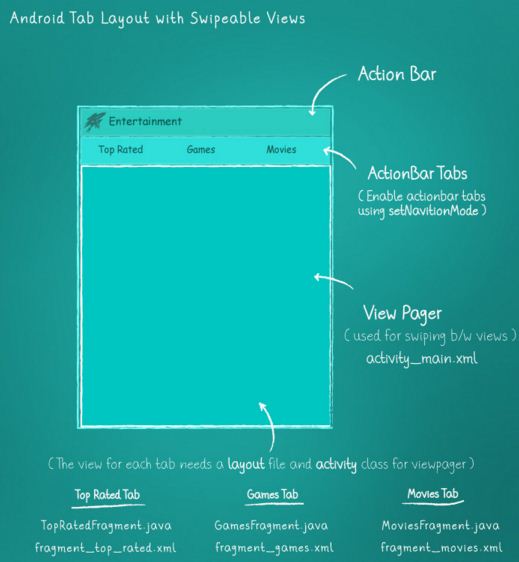
- Checkout the following pic which explains the complete overview of layout architecture.
- Basically we are using ViewPager as main layout and for individual pager views we use Fragments.
- The tabs are part of Action Bar.
Step 1: As we are going to use Fragments, extend your main activity from
FragmentActivity. Also implement this class from ActionBar.TabListener as we are adding Tabs too.
public class MainActivity extends FragmentActivity implements
        ActionBar.TabListener {
Step 2: File :
activity_main.xml
<android.support.v4.view.ViewPager xmlns:android="http://schemas.android.com/apk/res/android"
    android:id="@+id/pager"
    android:layout_width="match_parent"
    android:layout_height="match_parent">
</android.support.v4.view.ViewPager>
Step 3: I am creating a
FragmentPagerAdapter class to provide views to tab fragments.This adapter provides fragment views to tabs .
File : TabsPagerAdapter.java
    import info.androidhive.tabsswipe.GamesFragment;
import info.androidhive.tabsswipe.MoviesFragment;
import info.androidhive.tabsswipe.TopRatedFragment;
import android.support.v4.app.Fragment;
import android.support.v4.app.FragmentManager;
import android.support.v4.app.FragmentPagerAdapter;

public class TabsPagerAdapter extends FragmentPagerAdapter {

    public TabsPagerAdapter(FragmentManager fm) {
        super(fm);
    }

    @Override
    public Fragment getItem(int index) {

        switch (index) {
        case 0:
            // Top Rated fragment activity
            return new TopRatedFragment();
        case 1:
            // Games fragment activity
            return new GamesFragment();
        case 2:
            // Movies fragment activity
            return new MoviesFragment();
        }

        return null;
    }

    @Override
    public int getCount() {
        // get item count - equal to number of tabs
        return 3;
    }

}
Step 3: Adding Tabs to Action BarIn order to display tabs we don’t have to use any other UI element like TabHost. Action bar has the inbuilt capability of adding tabs. All we have to do is enable it using setNavigationMode(ActionBar.NAVIGATION_MODE_TABS) method.
Here I am adding three tabs Top Rated, Games, Movies to action bar. So I just stored all the tab names in a String array and added them to action bar using a for loop. File :
MainActivity.java
public class MainActivity extends FragmentActivity implements
        ActionBar.TabListener {

    private ViewPager viewPager;
    private TabsPagerAdapter mAdapter;
    private ActionBar actionBar;
    // Tab titles
    private String[] tabs = { "Top Rated", "Games", "Movies" };

    @Override
    protected void onCreate(Bundle savedInstanceState) {
        super.onCreate(savedInstanceState);
        setContentView(R.layout.activity_main);

        // Initilization
        viewPager = (ViewPager) findViewById(R.id.pager);
        actionBar = getActionBar();
        mAdapter = new TabsPagerAdapter(getSupportFragmentManager());

        viewPager.setAdapter(mAdapter);
        actionBar.setHomeButtonEnabled(false);
        actionBar.setNavigationMode(ActionBar.NAVIGATION_MODE_TABS);

        // Adding Tabs
        for (String tab_name : tabs) {
            actionBar.addTab(actionBar.newTab().setText(tab_name)
                    .setTabListener(this));
        }
OUTPUT :Step 4: Adding Views for Tabs
First Tab View
File :
fragment_top_rated.xml
<?xml version="1.0" encoding="utf-8"?>
<RelativeLayout xmlns:android="http://schemas.android.com/apk/res/android"
    android:layout_width="match_parent"
    android:layout_height="match_parent"
    android:orientation="vertical"
    android:background="#fa6a6a" >

    <TextView android:layout_width="fill_parent"
        android:layout_height="wrap_content"
        android:gravity="center"
        android:text="Design Top Rated Screen"
        android:textSize="20dp"
        android:layout_centerInParent="true"/>


</RelativeLayout>
File : TopRatedFragment.java
import info.androidhive.tabsswipe.R;
import android.os.Bundle;
import android.support.v4.app.Fragment;
import android.view.LayoutInflater;
import android.view.View;
import android.view.ViewGroup;

public class TopRatedFragment extends Fragment {

    @Override
    public View onCreateView(LayoutInflater inflater, ViewGroup container,
            Bundle savedInstanceState) {

        View rootView = inflater.inflate(R.layout.fragment_top_rated, container, false);

        return rootView;
    }
}
Second Tab ViewFile :
fragment_games.xml
<?xml version="1.0" encoding="utf-8"?>
<RelativeLayout xmlns:android="http://schemas.android.com/apk/res/android"
    android:layout_width="match_parent"
    android:layout_height="match_parent"
    android:orientation="vertical"
    android:background="#ff8400" >

    <TextView android:layout_width="fill_parent"
        android:layout_height="wrap_content"
        android:gravity="center"
        android:text="Design Games Screen"
        android:textSize="20dp"
        android:layout_centerInParent="true"/>


</RelativeLayout>
File : GamesFragment.java
import info.androidhive.tabsswipe.R;
import android.os.Bundle;
import android.support.v4.app.Fragment;
import android.view.LayoutInflater;
import android.view.View;
import android.view.ViewGroup;

public class GamesFragment extends Fragment {

    @Override
    public View onCreateView(LayoutInflater inflater, ViewGroup container,
            Bundle savedInstanceState) {

        View rootView = inflater.inflate(R.layout.fragment_games, container, false);

        return rootView;
    }
}
Third Tab ViewFile :
fragment_movies.xml
<?xml version="1.0" encoding="utf-8"?>
<RelativeLayout xmlns:android="http://schemas.android.com/apk/res/android"
    android:layout_width="match_parent"
    android:layout_height="match_parent"
    android:orientation="vertical"
    android:background="#17df0d">

    <TextView android:layout_width="fill_parent"
        android:layout_height="wrap_content"
        android:gravity="center"
        android:text="Design Movies Screen"
        android:textSize="20dp"
        android:layout_centerInParent="true"/>


</RelativeLayout>
File : MoviesFragment.java
import info.androidhive.tabsswipe.R;
import android.os.Bundle;
import android.support.v4.app.Fragment;
import android.view.LayoutInflater;
import android.view.View;
import android.view.ViewGroup;

public class MoviesFragment extends Fragment {

    @Override
    public View onCreateView(LayoutInflater inflater, ViewGroup container,
            Bundle savedInstanceState) {

        View rootView = inflater.inflate(R.layout.fragment_movies, container, false);

        return rootView;
    }

}
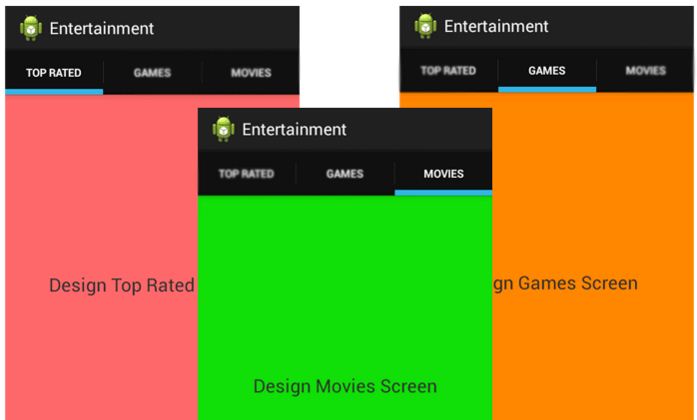
Step 5: Tab Change Listener
If you run the project you can see the swiping views working, but if you select a tab, view won't change automatically. This is because ViewPager didn't know about the tab change event. We have to manually change the view using Tab change listener.
File :
MainActivity.java
@Override
    public void onTabReselected(Tab tab, FragmentTransaction ft) {
    }

    @Override
    public void onTabSelected(Tab tab, FragmentTransaction ft) {
        // on tab selected
        // show respected fragment view
        viewPager.setCurrentItem(tab.getPosition());
    }

    @Override
    public void onTabUnselected(Tab tab, FragmentTransaction ft) {
    }
Step 6: View Change ListenerAs well if you swipe the view, you can’t see respected tab selected. Here also using ViewPager setOnPageChangeListener() we have to select the respected tab manually.
File :
MainActivity.java
/**
 * on swiping the viewpager make respective tab selected
 * */
viewPager.setOnPageChangeListener(new ViewPager.OnPageChangeListener() {

    @Override
    public void onPageSelected(int position) {
        // on changing the page
        // make respected tab selected
        actionBar.setSelectedNavigationItem(position);
    }

    @Override
    public void onPageScrolled(int arg0, float arg1, int arg2) {
    }

    @Override
    public void onPageScrollStateChanged(int arg0) {
    }
});
Complete CodeFile :
MainActivity.java
import android.app.ActionBar;
import android.app.ActionBar.Tab;
import android.app.FragmentTransaction;
import android.os.Bundle;
import android.support.v4.app.FragmentActivity;
import android.support.v4.view.ViewPager;
import android.view.Menu;

public class MainActivity extends FragmentActivity implements
        ActionBar.TabListener {

    private ViewPager viewPager;
    private TabsPagerAdapter mAdapter;
    private ActionBar actionBar;
    // Tab titles
    private String[] tabs = { "Top Rated", "Games", "Movies" };

    @Override
    protected void onCreate(Bundle savedInstanceState) {
        super.onCreate(savedInstanceState);
        setContentView(R.layout.activity_main);

        // Initilization
        viewPager = (ViewPager) findViewById(R.id.pager);
        actionBar = getActionBar();
        mAdapter = new TabsPagerAdapter(getSupportFragmentManager());

        viewPager.setAdapter(mAdapter);
        actionBar.setHomeButtonEnabled(false);
        actionBar.setNavigationMode(ActionBar.NAVIGATION_MODE_TABS);

        // Adding Tabs
        for (String tab_name : tabs) {
            actionBar.addTab(actionBar.newTab().setText(tab_name)
                    .setTabListener(this));
        }

        /**
         * on swiping the viewpager make respective tab selected
         * */
        viewPager.setOnPageChangeListener(new ViewPager.OnPageChangeListener() {

            @Override
            public void onPageSelected(int position) {
                // on changing the page
                // make respected tab selected
                actionBar.setSelectedNavigationItem(position);
            }

            @Override
            public void onPageScrolled(int arg0, float arg1, int arg2) {
            }

            @Override
            public void onPageScrollStateChanged(int arg0) {
            }
        });
    }

    @Override
    public void onTabReselected(Tab tab, FragmentTransaction ft) {
    }

    @Override
    public void onTabSelected(Tab tab, FragmentTransaction ft) {
        // on tab selected
        // show respected fragment view
        viewPager.setCurrentItem(tab.getPosition());
    }

    @Override
    public void onTabUnselected(Tab tab, FragmentTransaction ft) {
    }

}