Introduction
Android Componets
UserInterface
Advanced UI
Data Storage
Advanced Concepts
Others
New Studio
- Android User Interface
- 3.1 Introduction(Nano)
- 3.2 Layouts(Nano)
- -- LinearLayout(Nano)
- -- RelativeLayout(Nano)
- -- TableLayout(Mega)
- -- Frame Layout(Mega)
- --
Absolute Layout - -- Grid Layout(Mega)
- 3.3 UI Widgets (Nano)
- -- TextView(Nano)
- -- EditText(Nano)
- -- Button(Nano)
- -- Event Handler(Nano)
- -- Image Buttons(Nano)
- -- CheckBox(Nano)
- -- Dialog(Nano)
- -- RadioGroup & RadioButtons(Nano)
- -- Toast(Nano)
- -- RatingBar(Nano)
- -- SeekBar(Nano)
- -- ProgerssBar(Nano)
- -- ToggleButton(Nano)
- -- WebView(Nano)
- -- Spinner(Nano)
- -- Layout Inflator(Mega)
- -- ListView and Adapters(Mega)
- -- Gridview(Mega)
- 3.4 Android Resources(Nano)
- -- Resource Introduction(Nano)
- -- Animation Resources(Mega)
- -- Color State List Resource(Mega)
- -- Drawable Resources(Mega)
- -- Layout Resource(Nano)
- -- String Resources(Nano)
- -- Style Resource(Mega)
- -- Supporting Multiple Screens(Mega)
- -- Practises
Grid Layout
The GridLayout (was introduced in Android 4.0) is a new ViewGroup subclass that supports laying out views in a 2D grid, similar to an HTML table, as shown below: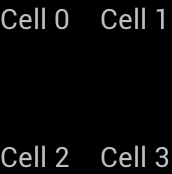
GridLayout Attributes
Following are the important attributes specific to GridLayout :
| Attribute | Description |
|---|---|
| android:columnCount | The maxmimum number of columns to create when automatically positioning children. |
| android:orientation | The orientation property is not used during layout. |
| android:rowCount | The maxmimum number of rows to create when automatically positioning children. |
Example 1 :
<?xml version="1.0" encoding="utf-8"?>
<GridLayout xmlns:android="http://schemas.android.com/apk/res/android"
        android:layout_width="match_parent"
        android:layout_height="match_parent"
        android:rowCount="2"
        android:columnCount="2">
     <TextView
            android:text="Cell 0"
            android:textSize="14dip" />
     <TextView
            android:text="Cell 1"
            android:textSize="14dip" />
     <TextView
            android:text="Cell 2"
            android:textSize="14dip" />
     <TextView
            android:text="Cell 3"
            android:textSize="14dip" />
</GridLayout>
This results in the following user interface when run in an application: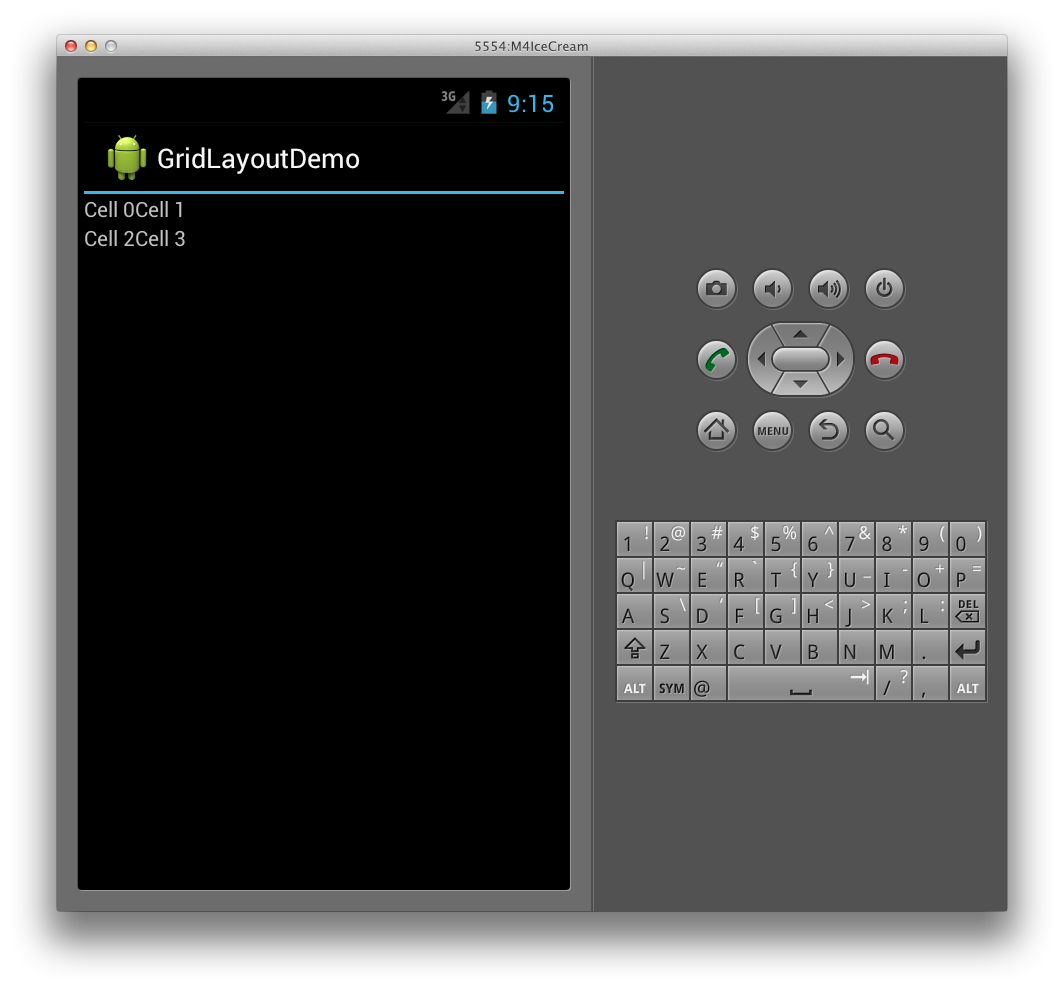
Example 2 : Specifying Explicit Position
If we want to explicitly control the positions of the child views in the GridLayout, we can set their layout_row and layout_column attributes.
<?xml version="1.0" encoding="utf-8"?>
<GridLayout xmlns:android="http://schemas.android.com/apk/res/android"
        android:layout_width="match_parent"
        android:layout_height="match_parent"
        android:rowCount="2"
        android:columnCount="2">
     <TextView
            android:text="Cell 0"
            android:textSize="14dip"
            android:layout_row="0"
            android:layout_column="0" />
     <TextView
            android:text="Cell 1"
            android:textSize="14dip"
            android:layout_row="0"
            android:layout_column="1" />
     <TextView
            android:text="Cell 2"
            android:textSize="14dip"
            android:layout_row="1"
            android:layout_column="0" />
     <TextView
            android:text="Cell 3"
            android:textSize="14dip"
            android:layout_row="1"
            android:layout_column="1"  />
</GridLayout>
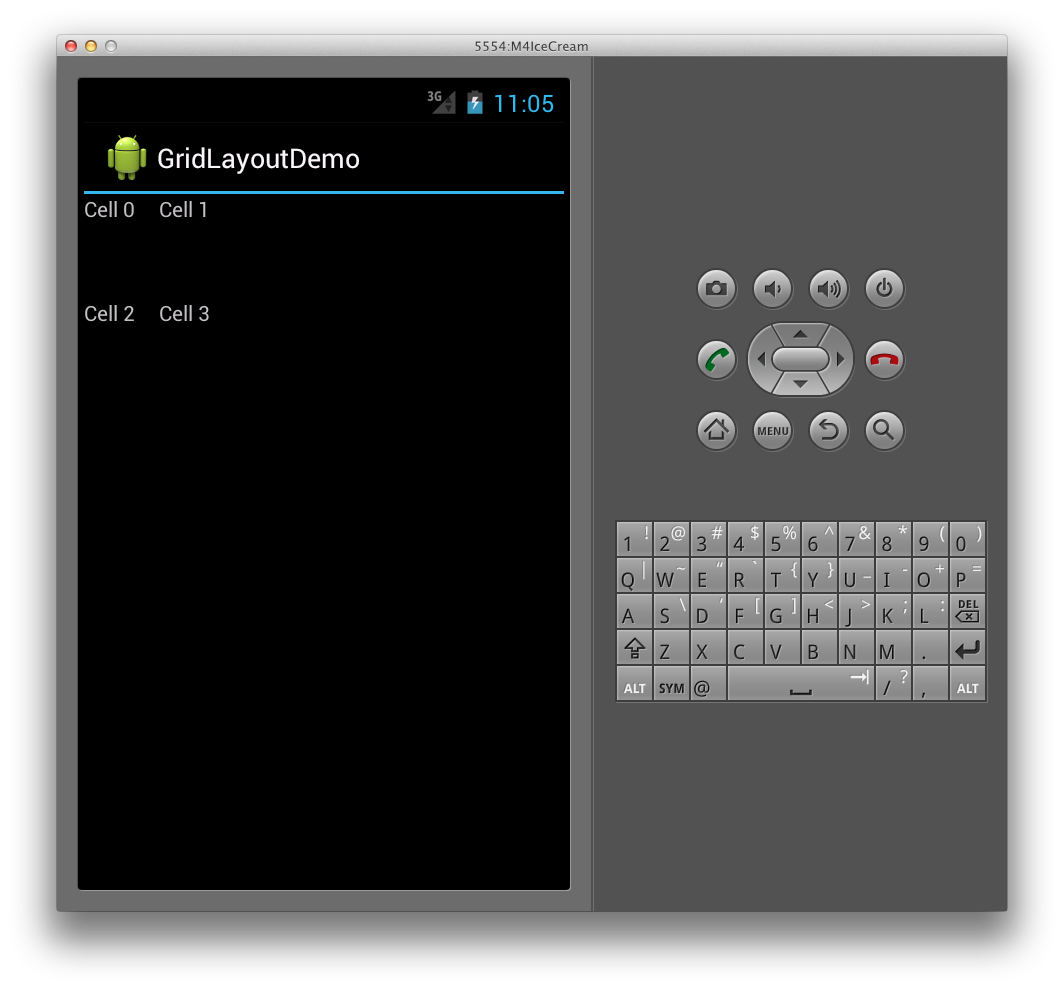
Example 3 : Specifying spacing
Additionally, in Android 4, a new general-purpose spacing view called Space is now available. To use it, simply add it as a child view. For example, the XML below adds an additional row to the GridLayout by setting its rowcount to 3, and adds a Space view that provides spacing between the TextViews.
<?xml version="1.0" encoding="utf-8"?>
<GridLayout xmlns:android="http://schemas.android.com/apk/res/android"
        android:layout_width="match_parent"
        android:layout_height="match_parent"
        android:rowCount="3"
        android:columnCount="2"
        android:orientation="vertical">
     <TextView
            android:text="Cell 0"
            android:textSize="14dip"
            android:layout_row="0"
            android:layout_column="0" />
     <TextView
            android:text="Cell 1"
            android:textSize="14dip"
            android:layout_row="0"
            android:layout_column="1" />
     <Space
            android:layout_row="1"
            android:layout_column="0"
            android:layout_width="50dp"
            android:layout_height="50dp" />
     <TextView
            android:text="Cell 2"
            android:textSize="14dip"
            android:layout_row="2"
            android:layout_column="0" />
     <TextView
            android:text="Cell 3"
            android:textSize="14dip"
            android:layout_row="2"
            android:layout_column="1" />
</GridLayout>
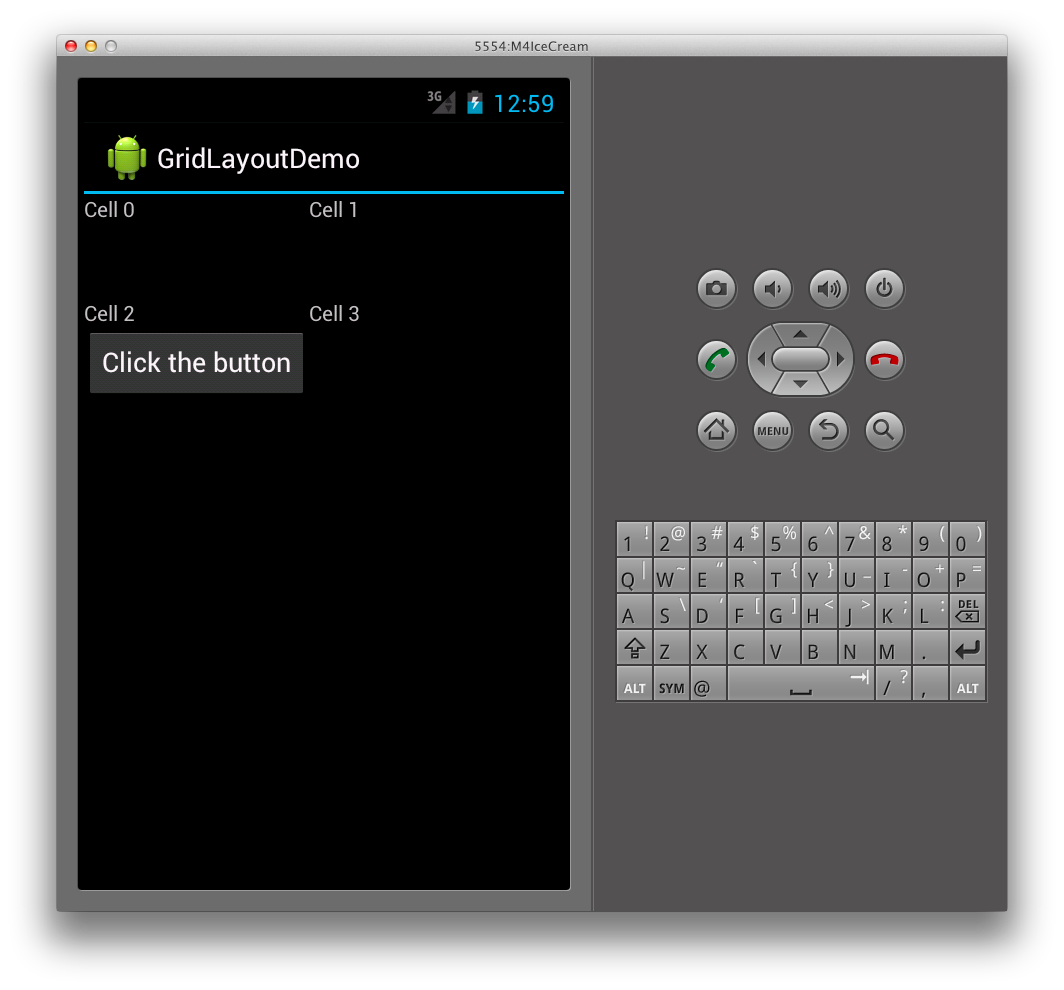
Example 4 : Spanning Columns and Rows
The GridLayout also supports cells that span multiple columns and rows. For example, say we add another row containing a button to the GridLayout as shown below:
<?xml version="1.0" encoding="utf-8"?>
<GridLayout xmlns:android="http://schemas.android.com/apk/res/android"
        android:layout_width="match_parent"
        android:layout_height="match_parent"
        android:rowCount="4"
        android:columnCount="2"
        android:orientation="vertical">
<TextView
            android:text="Cell 0"
            android:textSize="14dip"
            android:layout_row="0"
            android:layout_column="0" />
     <TextView
            android:text="Cell 1"
            android:textSize="14dip"
            android:layout_row="0"
            android:layout_column="1" />
     <Space
            android:layout_row="1"
            android:layout_column="0"
            android:layout_width="50dp"
            android:layout_height="50dp" />
     <TextView
            android:text="Cell 2"
            android:textSize="14dip"
            android:layout_row="2"
            android:layout_column="0" />
     <TextView
            android:text="Cell 3"
            android:textSize="14dip"
            android:layout_row="2"
            android:layout_column="1" />
  <Button
            android:id="@+id/myButton"
            android:text="Login User"
            android:layout_row="3"
            android:layout_column="0"
            android:layout_columnSpan="2" />
</GridLayout>