Introduction
Android Componets
UserInterface
Advanced UI
Data Storage
Advanced Concepts
Others
New Studio
- Android User Interface
- 3.1 Introduction(Nano)
- 3.2 Layouts(Nano)
- -- LinearLayout(Nano)
- -- RelativeLayout(Nano)
- -- TableLayout(Mega)
- -- Frame Layout(Mega)
- --
Absolute Layout - -- Grid Layout(Mega)
- 3.3 UI Widgets (Nano)
- -- TextView(Nano)
- -- EditText(Nano)
- -- Button(Nano)
- -- Event Handler(Nano)
- -- Image Buttons(Nano)
- -- CheckBox(Nano)
- -- Dialog(Nano)
- -- RadioGroup & RadioButtons(Nano)
- -- Toast(Nano)
- -- RatingBar(Nano)
- -- SeekBar(Nano)
- -- ProgerssBar(Nano)
- -- ToggleButton(Nano)
- -- WebView(Nano)
- -- Spinner(Nano)
- -- Layout Inflator(Mega)
- -- ListView and Adapters(Mega)
- -- Gridview(Mega)
- 3.4 Android Resources(Nano)
- -- Resource Introduction(Nano)
- -- Animation Resources(Mega)
- -- Color State List Resource(Mega)
- -- Drawable Resources(Mega)
- -- Layout Resource(Nano)
- -- String Resources(Nano)
- -- Style Resource(Mega)
- -- Supporting Multiple Screens(Mega)
- -- Practises
Supporting Multiple Screens
This tutorial describes how to the resource selectors work in Android. It describes how to support different screen sizes, languages and densities on different devices.1. Android device configurations
1.1 Handling different Android devices
Android device comes in a variety of different configurations in the sense of size, screen pixel density, language settings, etc.1.2. Resource qualifiers
The following application resource directories provide different layout designs for different screen sizes and different drawables. Use the mipmap/ folders for launcher icons.
res/layout/my_layout.xml              // layout for normal screen size ("default")
res/layout-large/my_layout.xml        // layout for large screen size
res/layout-xlarge/my_layout.xml       // layout for extra-large screen size
res/layout-xlarge-land/my_layout.xml  // layout for extra-large in landscape orientation

res/layout-large-land/my_layout.xml        //land - layout for large screen size
res/layout-xlarge-land/my_layout.xml       //land - layout for extra-large screen size
res/layout-xlarge-land/my_layout.xml       //land - layout for extra-large in landscape orientation
res/layout-sw600dp/main_activity.xml   # For 7" tablets (600dp wide and bigger) (600x1024 mdpi).
res/layout-sw720dp/main_activity.xml   # For 10" tablets (720dp wide and bigger)(720x1280 mdpi, 800x1280 mdpi, etc).

res/drawable-mdpi/graphic.png         // bitmap for medium-density
res/drawable-hdpi/graphic.png         // bitmap for high-density
res/drawable-xhdpi/graphic.png        // bitmap for extra-high-density
res/drawable-xxhdpi/graphic.png       // bitmap for extra-extra-high-density

res/mipmap-mdpi/my_icon.png         // launcher icon for medium-density
res/mipmap-hdpi/my_icon.png         // launcher icon for high-density
res/mipmap-xhdpi/my_icon.png        // launcher icon for extra-high-density
res/mipmap-xxhdpi/my_icon.png       // launcher icon for extra-extra-high-density
res/mipmap-xxxhdpi/my_icon.png      // launcher icon for extra-extra-extra-high-density
The following code in the Manifest supports all dpis.
<supports-screens android:smallScreens="true"
          android:normalScreens="true"
          android:largeScreens="true"
          android:xlargeScreens="true"
          android:anyDensity="true" />
Android doesn't generate IDs for assets content. You need to specify relative path and name for files inside /assets.AssetManager assetManager = getAssets();
for accessing to /assets folder.
Android Qualifiers
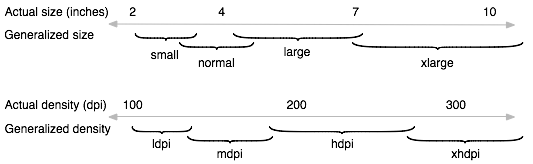
Android choose resources from drawable folders according to dpi.There are four screen densities :
- ldpi
- mdpi
- hdpi
- xhdpi
mdpi = 160dpi
hdpi 240dpi
xhdpi = 320dpi
There are four screen sizes :
- layout-small
- layout-nomal
- layout-large
- layout-xlarge
normal screen size =3.0 - 4.7 (approx)
large screen size = 5 - 7 (approx)
xlarge screen size = 7> (approx)
Note : Android selects the correct file automatically based on the current configuration.
Table 1. Density resource selector
| Density | Equals |
|---|---|
| ldpi | 160 dpi x 0.75 |
| mdpi | 160 dpi |
| hdip | 1.5 x 160 dpi = 240 dpi |
| xhdpi | 2 x 160 dpi = 320 dpi |
| xxhdpi | 3 x 160 dpi = 480 dpi |
| xxxhdpi | 4 x 160 dpi = 640 dpi |
| Icons | mdpi | hdpi | xhdpi | xxhdpi | xxxhdpi |
|---|---|---|---|---|---|
| Launcher icon | 48 px | 72 px | 96 px | 144 px | 192 px |
| Action bar icon | 32 px | 48 px | 64 px | 96 px | 128 px |
| Notification icon | 24 px | 36 px | 48 px | 72 px | 96 px |
The following code in the Manifest supports all dpis.
<supports-screens android:smallScreens="true"
          android:normalScreens="true"
          android:largeScreens="true"
          android:xlargeScreens="true"
          android:anyDensity="true" />
create your avd according to these densities and screen sizes then check the result.